Collect payments inside WhatsApp with UPI, cards and Razorpay links
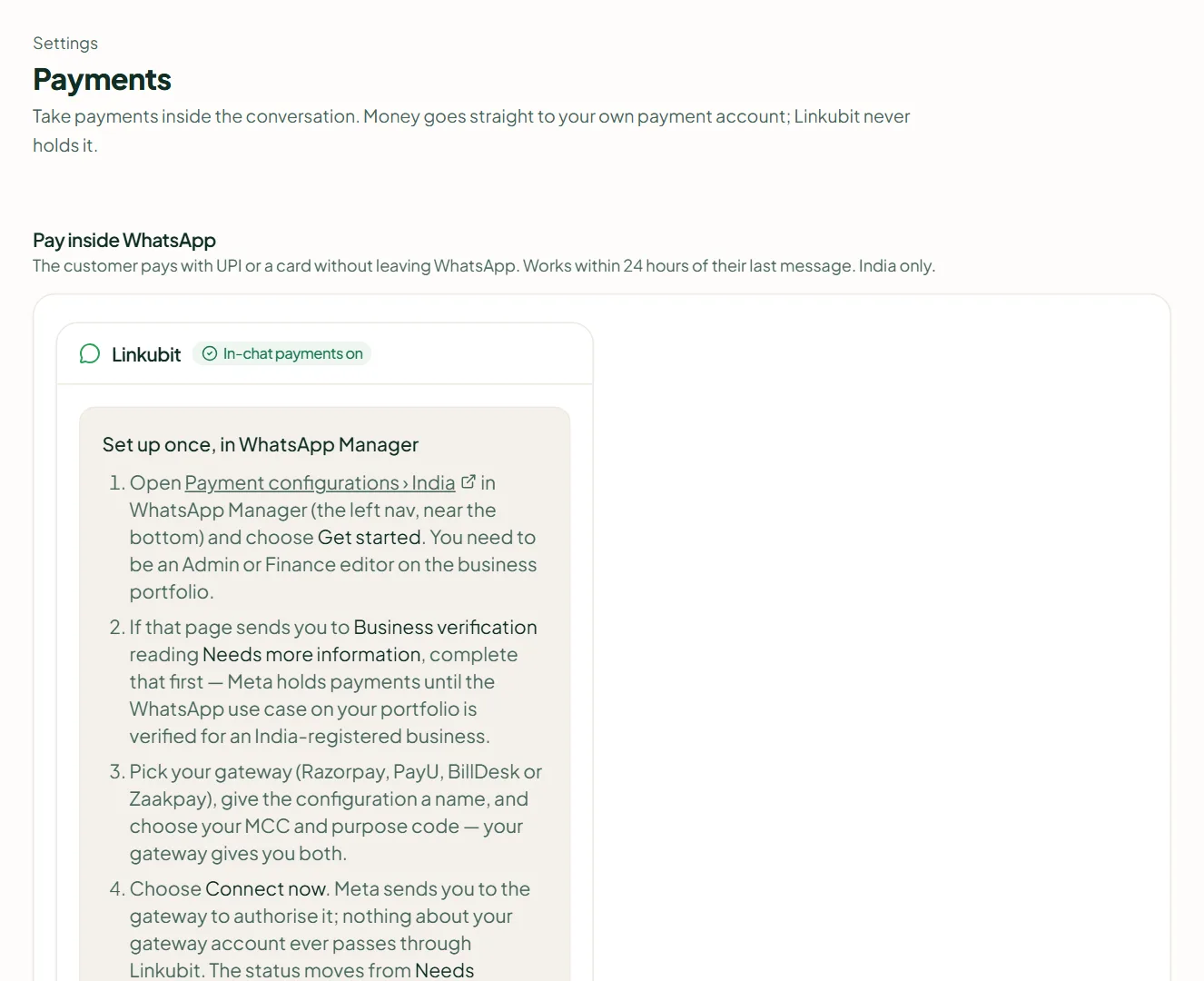
Set up WhatsApp's in-chat payments or Razorpay payment links in Settings › Payments, then request a payment from a conversation. Money goes to your account.
Two ways: Pay inside WhatsApp (UPI or card, in India, within 24 hours of the customer's last message) through a payment configuration you create in WhatsApp Manager, or a Razorpay payment link from your own Razorpay keys. Request a payment from the composer; the amount is a catalogue price. 0.5 credit per request. Linkubit never holds the money.
Option 1: Pay inside WhatsApp
- In WhatsApp Manager, open Payment configurations › India and choose Get started (you need Admin or Finance editor access).
- Pick a gateway — Razorpay, PayU, BillDesk or Zaakpay — choose Connect now, then Test, until the status reads Active.
- In Linkubit, open Settings › Payments, choose the configuration in the list and press Use this configuration.
Option 2: Razorpay payment links
- In Razorpay's dashboard, create an API key pair.
- In Settings › Payments › Payment links, paste the Key ID (rzp_live_…) and Key secret, and press Connect Razorpay.
Request a payment
In a conversation, press Request payment, choose Catalogue items (priced from your catalogue) or type a Custom amount, and press Request ₹…. The agent can request one too, for catalogue items only, and under Behaviour you can make it ask a colleague first. When the customer pays, the deal closes at the paid amount.
Outside the 24-hour window
The in-chat card needs an open window. Under Behaviour › Outside the 24-hour window, choose the template that carries a link instead.
Related
Stuck? Write to help@linkubit.com with the screen you are on and what it says. Not using Linkubit yet? Start free — fourteen days of Pro, no card.