Create a WhatsApp template and submit it to Meta from Linkubit
Write a WhatsApp message template in Settings › Templates, submit it for Meta's approval without leaving Linkubit, and use it in campaigns.
In short
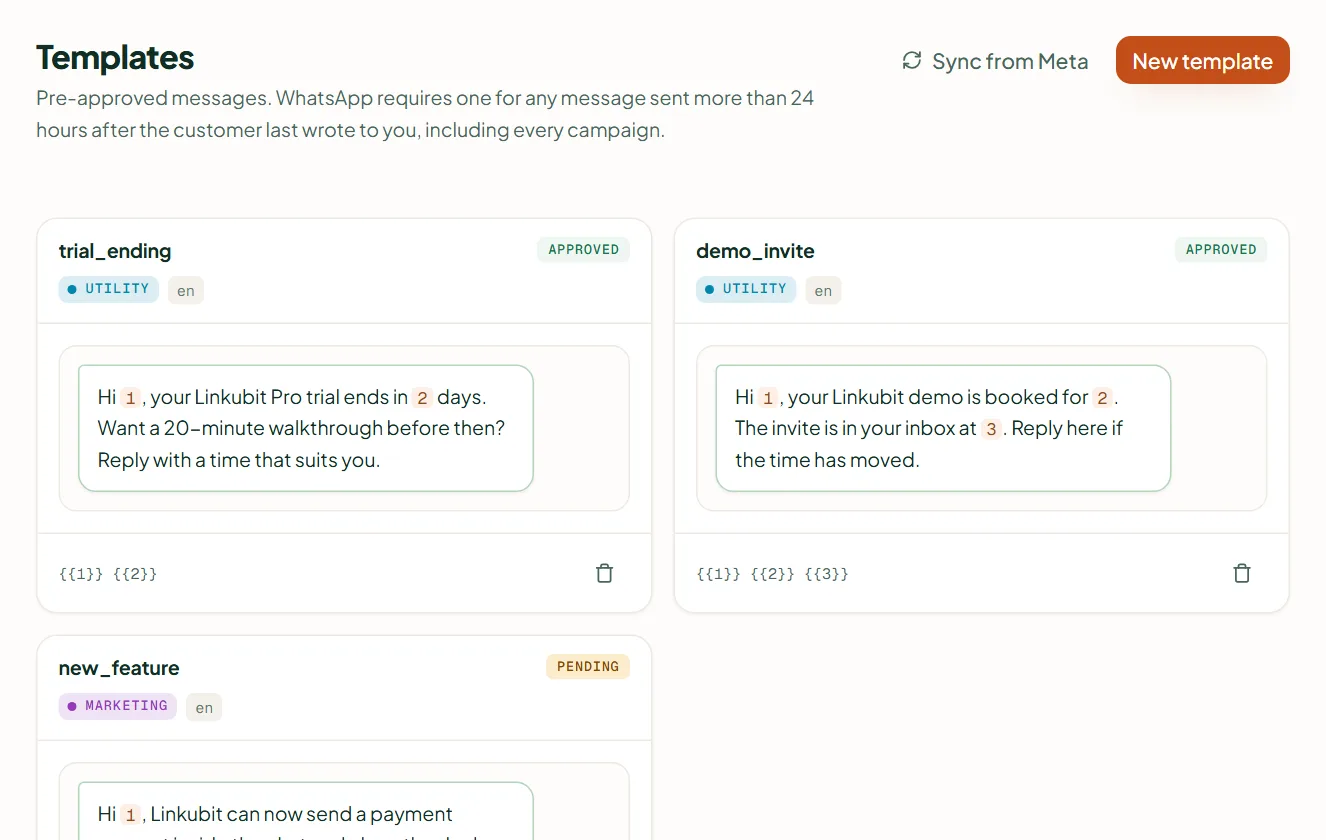
Business-initiated WhatsApp messages need a template Meta has approved. In Settings › Templates press New template, choose Marketing, Utility or Authentication, write it with named variables like {{first_name}} and a sample for each, and press Submit for approval. Sync from Meta pulls templates made elsewhere.
Steps
- Open Settings › Templates and press New template.
- Choose the category — Marketing, Utility or Authentication. A message about an order or booking the customer started is Utility; anything promotional is Marketing.
- Optional header: none, Text, Image, Video or Document (sample file up to 16 MB).
- Write the body with named variables in double braces — {{first_name}}, {{order_id}} (lowercase letters, digits and underscores) — and give a sample for each.
- Press Submit for approval. Meta usually answers within minutes to a day.
Check a draft first with the free template checker, and read why templates get rejected. Ready-made examples by industry are in WhatsApp templates.
Related
Stuck? Write to help@linkubit.com with the screen you are on and what it says. Not using Linkubit yet? Start free — fourteen days of Pro, no card.