Connect Gmail to Linkubit and receive replies
Sign in with Google to send from your own Gmail or Workspace address, then add one forwarding rule in Gmail so customer replies reach the inbox.
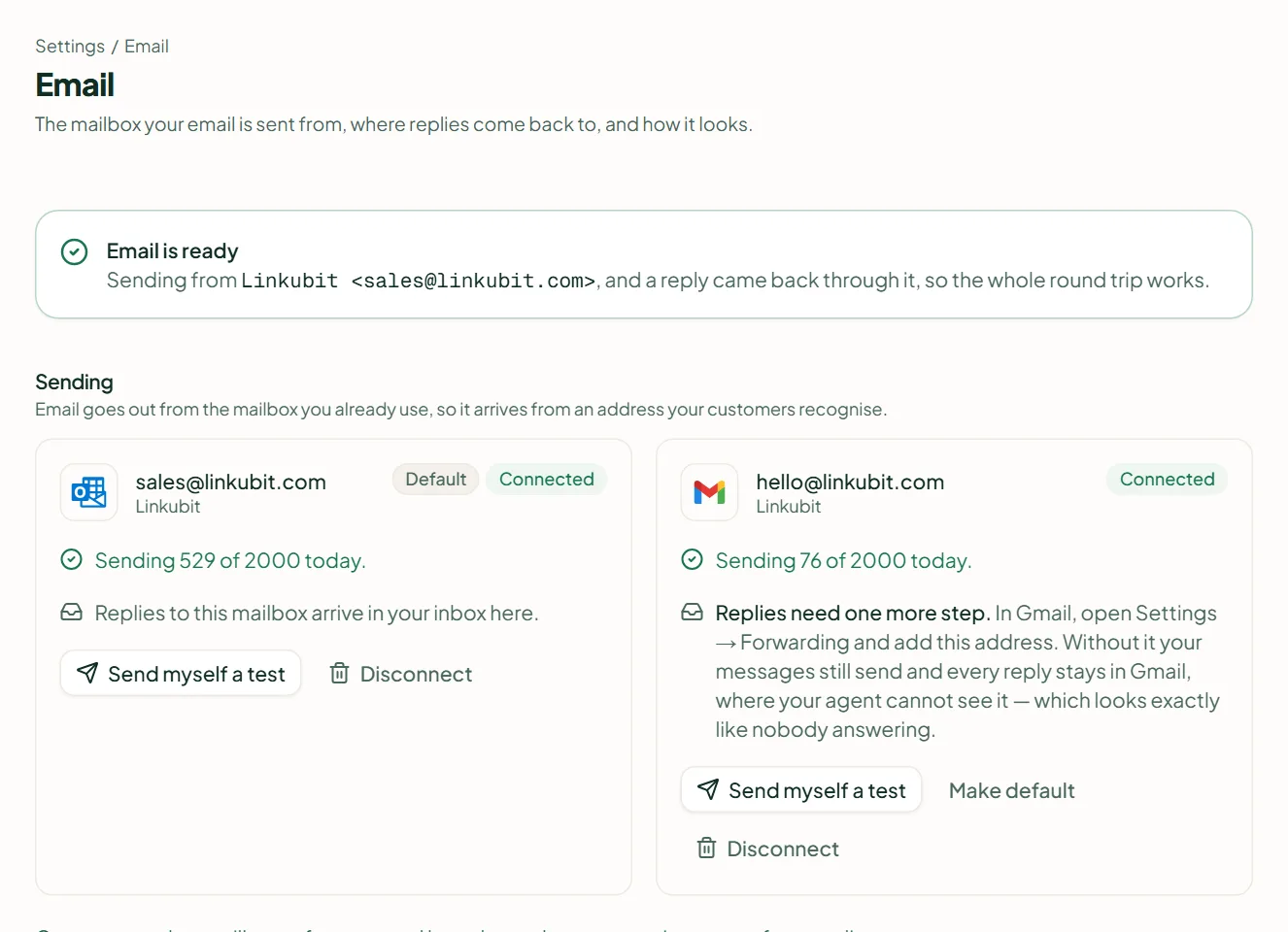
Go to Settings › Email, choose Gmail and sign in with Google. Linkubit sends from your own address, with no DNS changes. For replies to come back, add Linkubit's address under Gmail › Settings › Forwarding; Gmail's confirmation code appears on Linkubit's card for you to paste back.
Connect
- Open Settings › Email and, under Connect a mailbox, choose Gmail (Google Workspace or a personal account).
- Google's sign-in opens in the same tab. Choose the account and allow the permissions — Linkubit asks to send mail and to read your sending reputation, not to read your inbox.
- You return to Settings › Email with the mailbox connected.
Make replies come back (one Gmail setting)
- On the mailbox card, under Replies need one more step, copy the forwarding address.
- In Gmail, open Settings › See all settings › Forwarding and POP/IMAP, choose Add a forwarding address and paste it.
- Gmail sends a confirmation to that address. Linkubit catches it and shows Gmail sent a confirmation on the card, with the code. Paste the code into Gmail where it asks — or use Confirm in Gmail from the browser you are signed into Gmail with.
- Back in Gmail, turn forwarding on (forward a copy and keep Gmail's copy in the inbox).
- Press Send myself a test on the card and reply to it. The card reads Replies reach you when it worked.
How much it can send
A new mailbox starts slowly so a first campaign cannot get your address flagged: 50 emails on day one, rising each day (100, 200, 350, 500, 750, 1,000) to Google's daily ceiling of 2,000. Campaigns use at most 80% of the day's allowance — the rest is kept for the agent's replies. The card shows Sending X of Y today. See Why a campaign is "waiting on the mailbox".
Does my plan include a mailbox?
Starter and above. On Free you will see Your plan has no room for a mailbox with See plans.
The card says "Replies are not arriving."
The forwarding rule is off or unconfirmed. Check Gmail's Forwarding settings, then press Test again. If it still fails, Reconnect.
Can I use Outlook?
Outlook (Microsoft 365) is also offered on the same screen; like Zoho, it reads replies directly, with no forwarding rule.
Related
Stuck? Write to help@linkubit.com with the screen you are on and what it says. Not using Linkubit yet? Start free — fourteen days of Pro, no card.