Invite your team and set roles and permissions
Invite teammates in Settings › Users, give each a role, and decide whose records they see — their own, their team's, or everyone's.
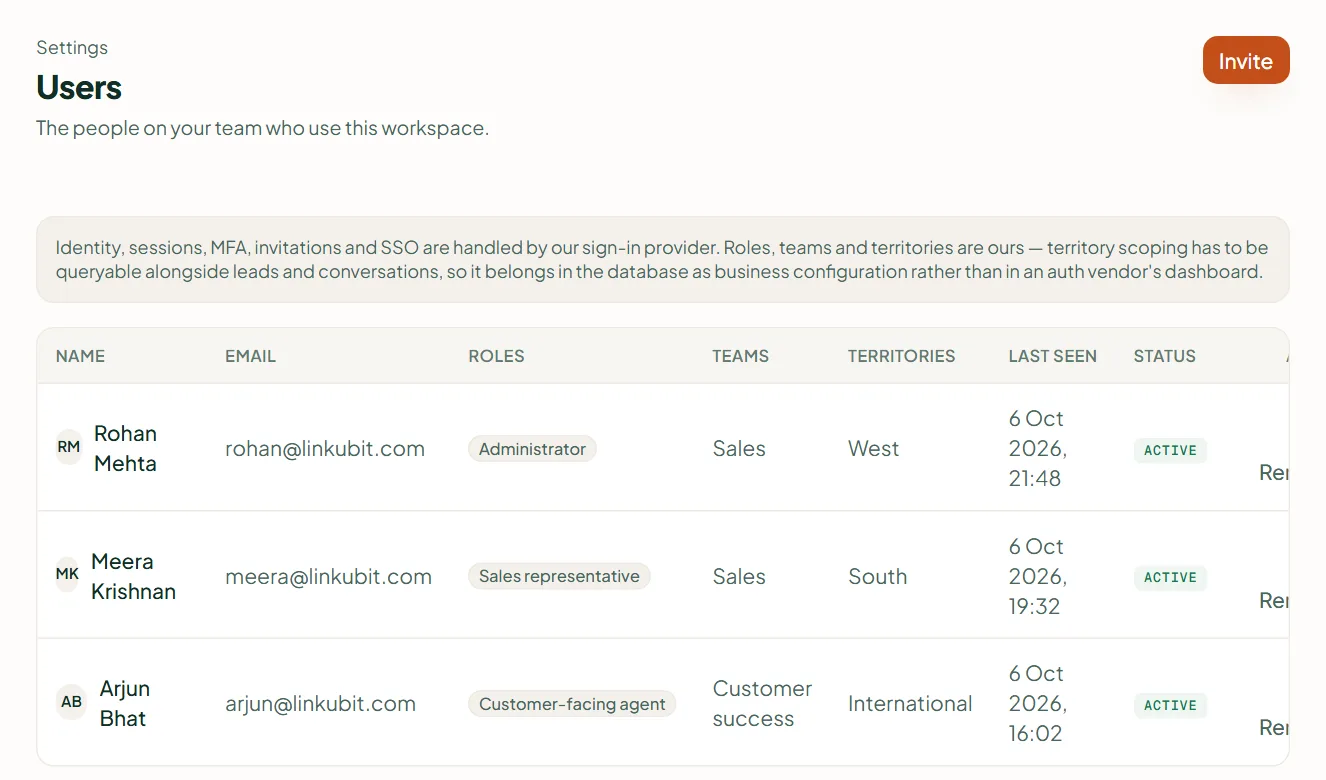
In Settings › Users press Invite and enter an email address; each invite uses a seat. Give the person a role: Administrator, Sales manager, Sales representative, Customer-facing agent, Marketing manager or Analyst. A role sets what they can do and whose records they see. Custom roles and teams are on Scale.
Invite
- Open Settings › Users and press Invite.
- In Invite somebody, type the Email address. Switch on Invite as an organisation administrator only for someone who should control everything.
- They get an email. Pending invitations are listed until accepted.
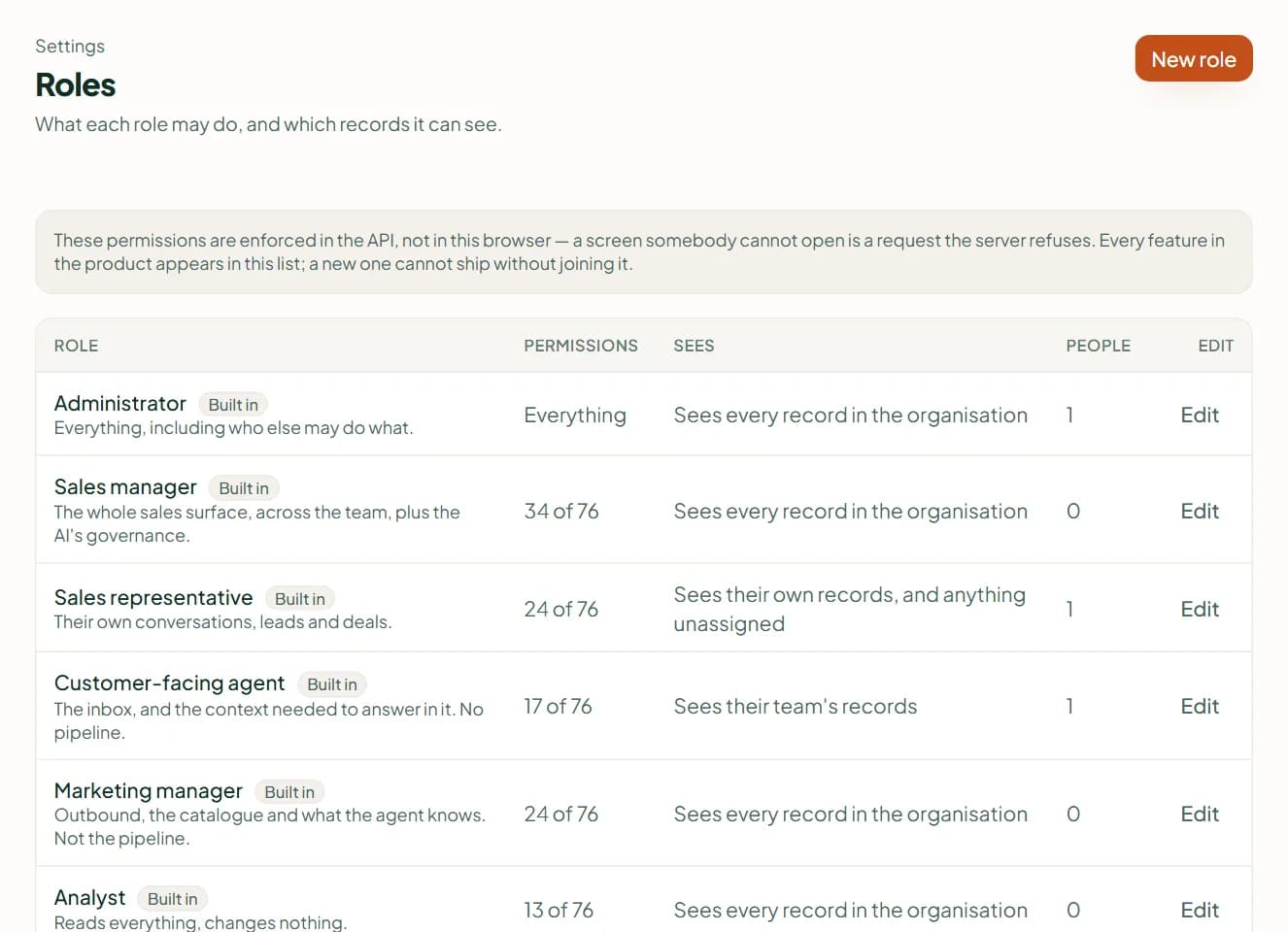
The built-in roles
| Role | Typical person |
|---|---|
| Administrator | The owner — everything, including billing and roles |
| Sales manager | A team lead who sees every record |
| Sales representative | A salesperson who sees their own records and unassigned ones |
| Customer-facing agent | Someone answering customers in the inbox |
| Marketing manager | Whoever runs campaigns and audiences |
| Analyst | Someone who reads the numbers |
On Settings › Roles & teams, Whose records sets the reach: own and unassigned, their team's, their territory's, or every record. Creating custom roles and teams needs Scale.
You can't lock yourself out
The Administrator role cannot be deleted or narrowed, and the last administrator cannot be removed or demoted.
Related
Stuck? Write to help@linkubit.com with the screen you are on and what it says. Not using Linkubit yet? Start free — fourteen days of Pro, no card.