Teach your AI agent your business: knowledge and catalogue
Add documents to Knowledge and products to the Catalogue so the agent answers from your material and quotes only your listed prices.
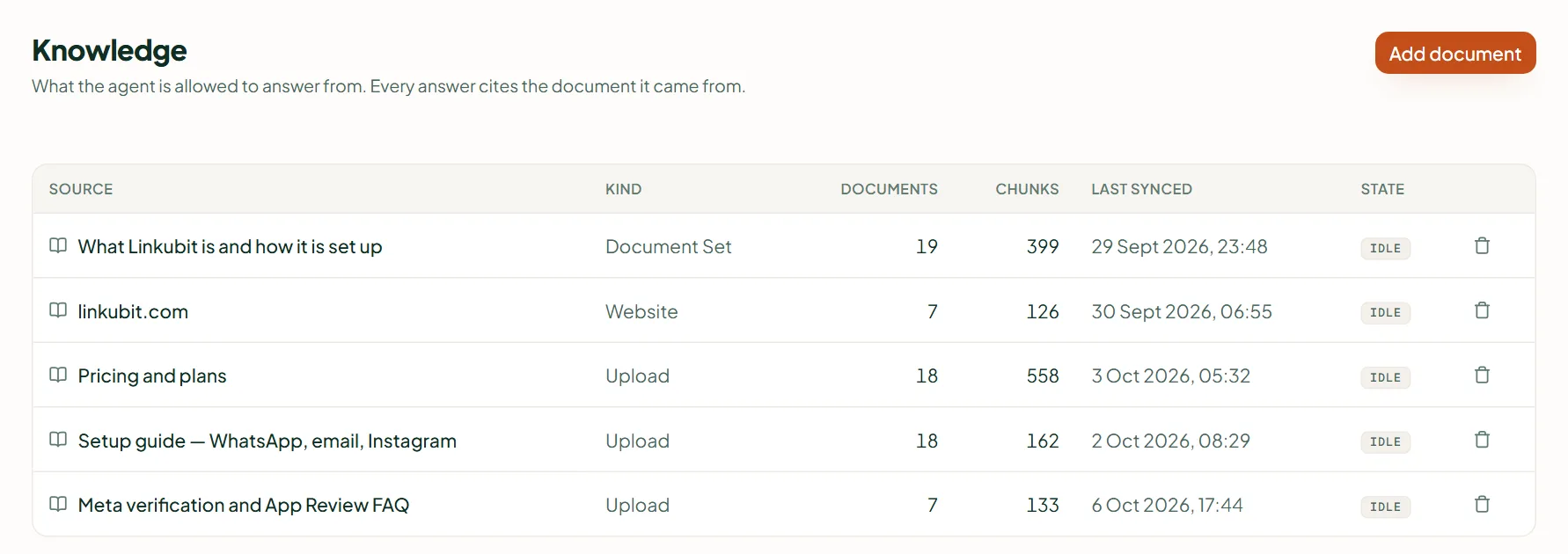
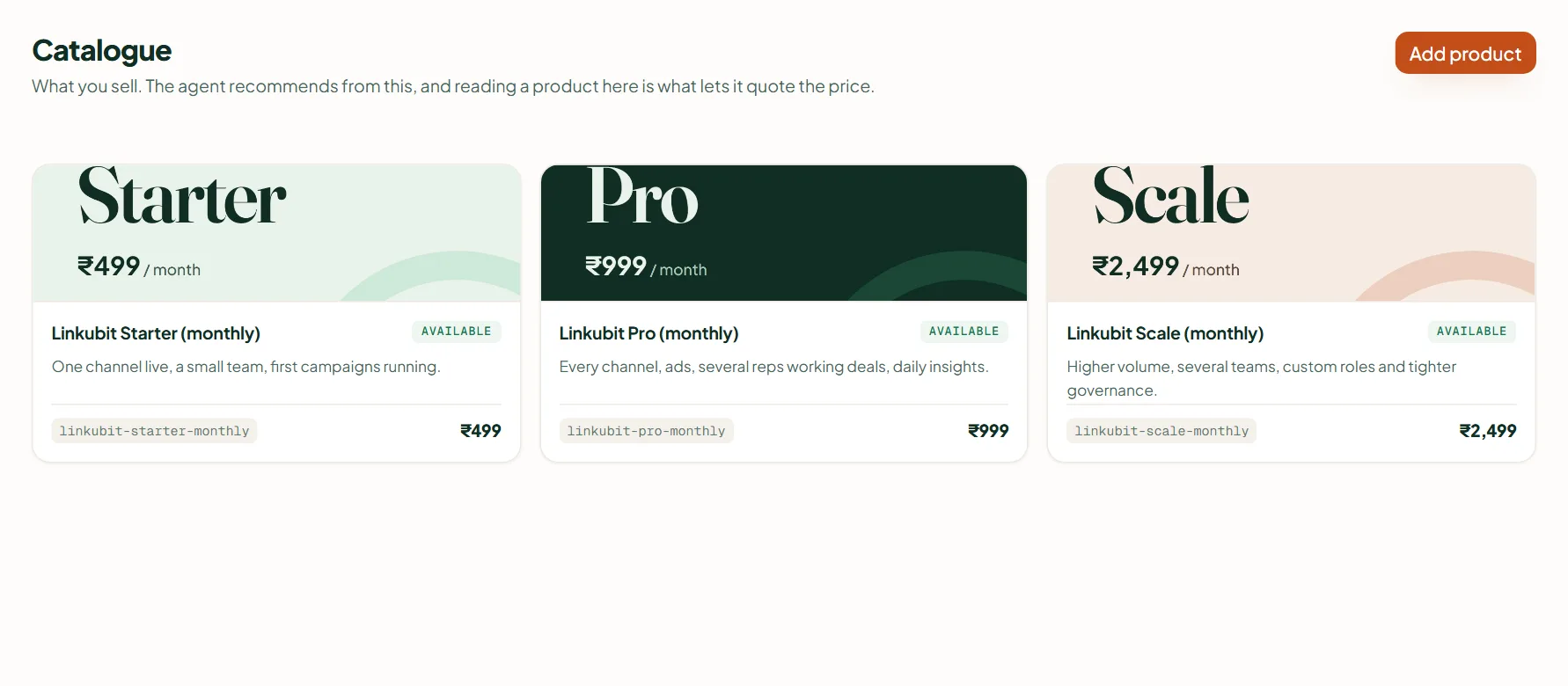
The agent answers from two places: Knowledge (documents and pasted text — every answer cites its source) and the Catalogue (products with prices, photos, videos and PDFs). A price is quoted only if it is in the catalogue; a document that disagrees with the catalogue loses.
Add knowledge
- Open Knowledge in the sidebar and press Add document.
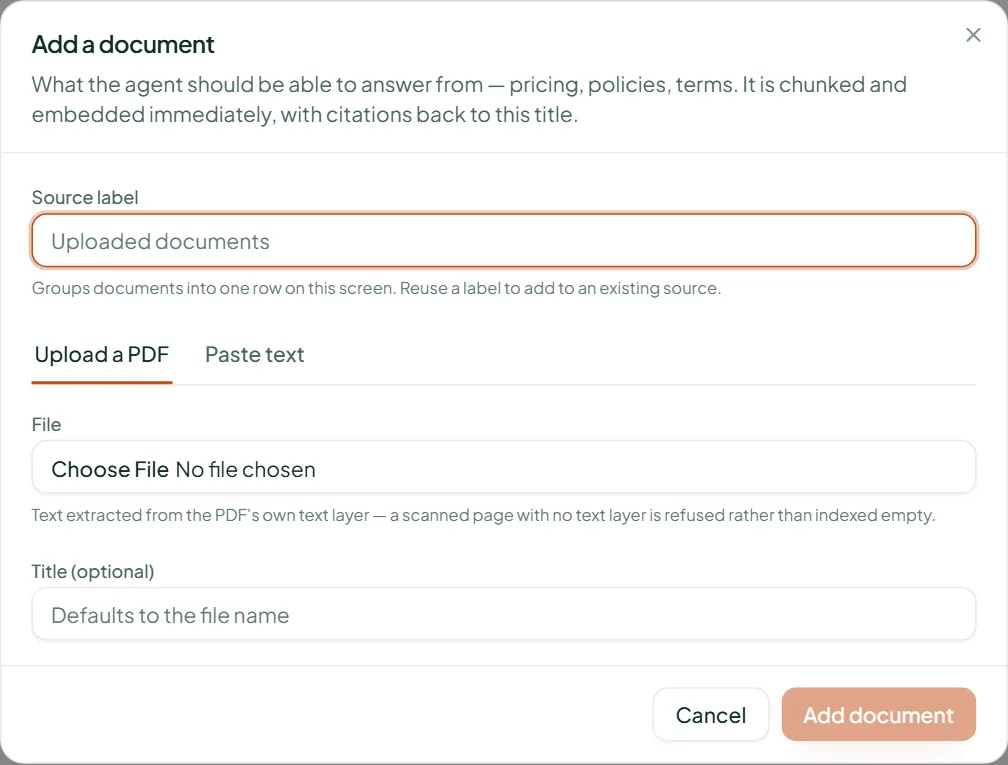
- Choose Upload a PDF (up to 20 MB, with selectable text — a scanned image with no text layer is refused) or Paste text (a title and the text).
- Give it a Source label to group documents, and press Add document. It reads Indexing… while it is processed.
Indexing costs 0.5 credit per page of about 3,000 characters. Your website, if you gave it during setup, was read then. Good knowledge: FAQs, policies (returns, delivery, cancellation), service descriptions, how booking works.
Add products to the catalogue
- Open Catalogue and press Add product.
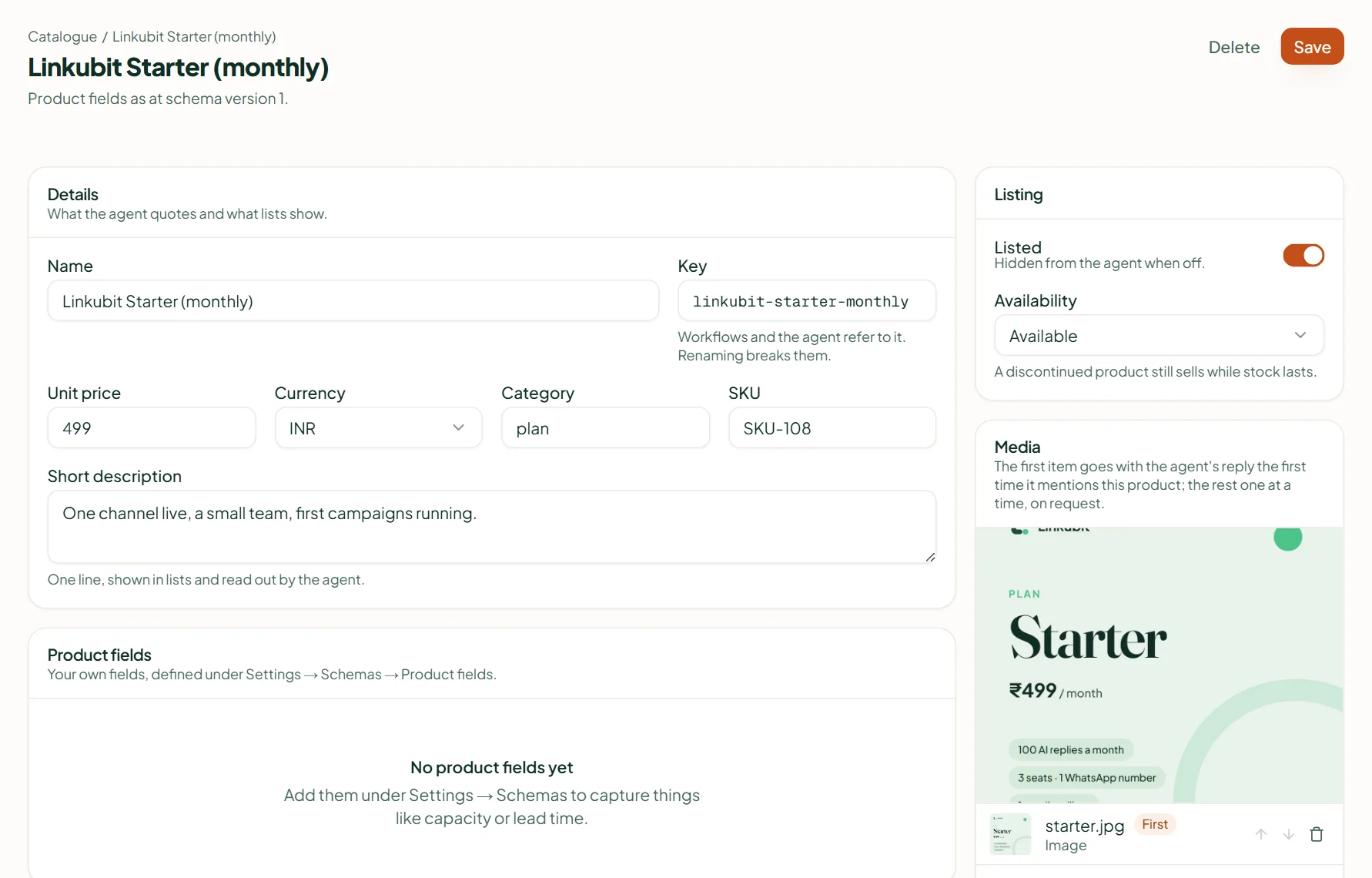
- Fill Name, Unit price, Currency, Category and a Short description. A longer Description is indexed for answers with Save and index.
- Under Media, press Add image, video or PDF: JPEG up to 5 MB, MP4 up to 16 MB, PDF up to 100 MB. These are WhatsApp's own limits; PNG is not accepted.
- Leave Listed on for products the agent may offer.
When a reply names a product it looked up, the agent attaches that product's first picture or file automatically, one per reply. Each product page shows Sent to customers and Interested customers.
Prices come from the catalogue only
The agent never invents a price. If a customer asks about something with no catalogue price, it says it will check, or hands over to your team, depending on your rules.
Related
Stuck? Write to help@linkubit.com with the screen you are on and what it says. Not using Linkubit yet? Start free — fourteen days of Pro, no card.