Import contacts, companies and leads from CSV or Excel
Download the template, fill name and phone or email, choose a consent basis, and import contacts, companies or leads from a CSV or .xlsx file.
In short
On Contacts, Companies or Leads, press Import, download the expected format, fill it and upload it. Every contact needs a phone or an email. Pick the consent basis that is true for the list. On Free, the first 150 contacts are answered by the agent; the rest are kept but not answered until you upgrade.
Steps
- Open Contacts (or Companies, Leads) and press Import.
- Choose Download the expected format for the template, or use your own sheet with matching column names.
- Press Choose a file — CSV or Excel (.xlsx).
- For contacts and leads, pick the consent basis: They are existing customers, They opted in or Legitimate interest.
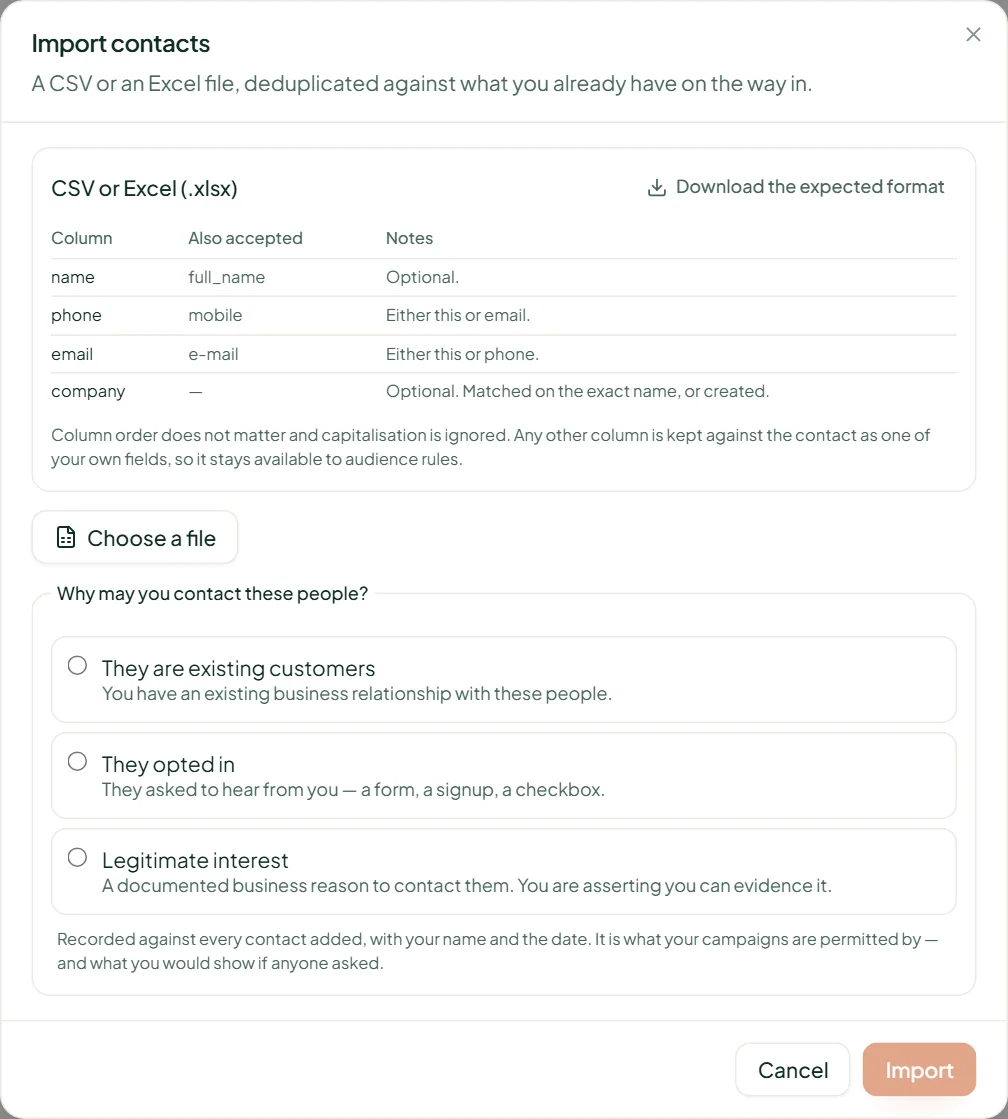
Columns
| Import | Columns | Notes |
|---|---|---|
| Contacts | name, phone, email, company | Phone or email required. Any other column is kept as the contact's own field. |
| Companies | name, domain, industry, employees, country, region | Domain (or website) prevents duplicates. Country as a two-letter code (IN). |
| Leads | name, email, phone, company, source, class, owner | Class is high, medium, low or disqualified; owner is a teammate's email. |
Phone numbers
Include the country code (+91 98765 43210 or 919876543210). A ten-digit number with no country code is ambiguous to WhatsApp.
Related
Stuck? Write to help@linkubit.com with the screen you are on and what it says. Not using Linkubit yet? Start free — fourteen days of Pro, no card.