Connect monday.com or Zoho CRM to Linkubit
Connect monday.com or Zoho CRM in Settings › CRMs, map what goes across, choose what needs approval, and keep records in sync one way or both.
In short
In Settings › CRMs press Connect monday.com or Connect Zoho CRM and approve Linkubit. Then Add a map: what goes across (leads and contacts, or deals), which details, how to avoid duplicates, whether the AI may read it, and whether to ask before sending. Starter and up; CRM syncs cost no credits.
Connect
- Open Settings › CRMs and press Connect monday.com or Connect Zoho CRM.
- Sign in and approve Linkubit's app. For Zoho, a Zoho CRM administrator is simplest.
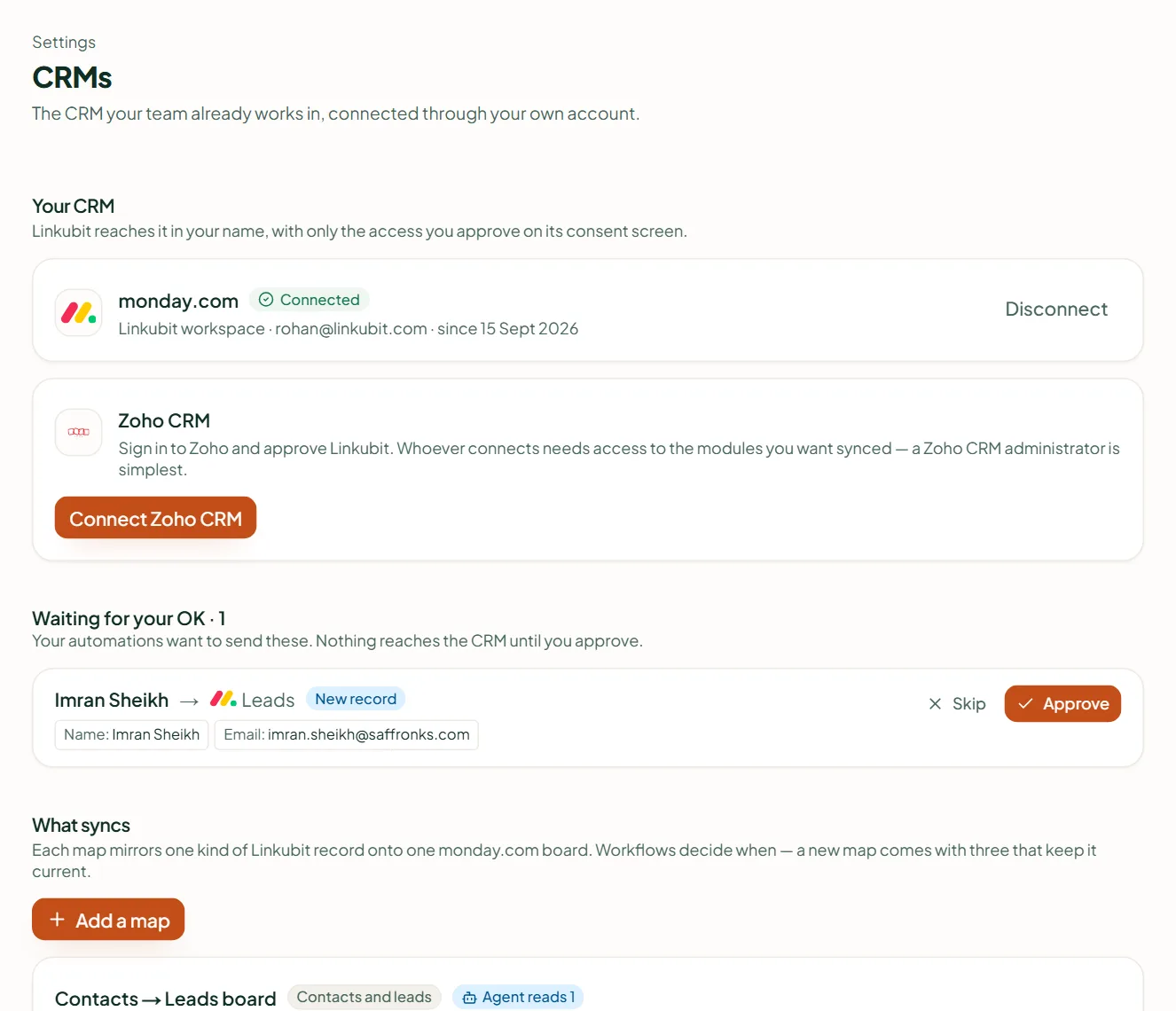
Add a map
- What should go to monday.com? (or Zoho CRM) — Leads & contacts, or Deals.
- Which details? — the fields to send or bring back.
- Avoid duplicates — match on email or phone.
- Let the AI see it? — whether the agent may read the CRM record for a contact.
- Check before it's sent? — Ask before adding anyone new (recommended), Ask before every change, or Send everything automatically.
- Direction — Send to the CRM, Bring back from the CRM or Keep in sync both ways.
Each map comes with three workflows you can edit in Settings › Workflows. Step-by-step guides: monday.com and Zoho CRM.
Related
Stuck? Write to help@linkubit.com with the screen you are on and what it says. Not using Linkubit yet? Start free — fourteen days of Pro, no card.