Create saved replies your team can insert with one click
Save the answers your team types again and again as shortcuts, and drop them into any reply from the inbox composer.
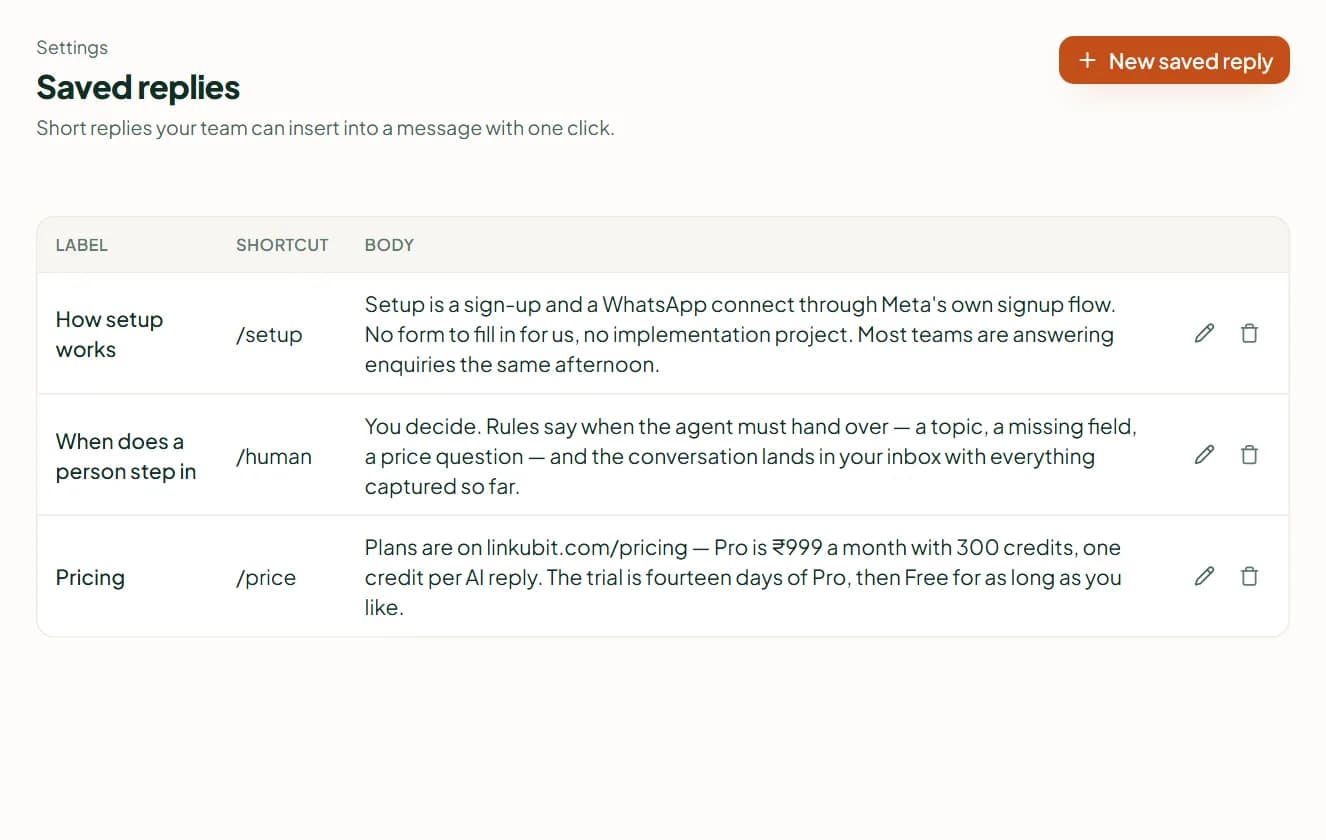
A saved reply is a label, a shortcut like /rates and the words behind it. In the inbox composer, open Saved and pick one: it lands in the box for you to edit before you send. If the text has to change for each person, use a template instead.
Where to find it
Saved replies are not in the Settings menu. Open the Saved menu in a conversation's composer; when none exist yet it has an Add one link — or go straight to the Saved replies page at /settings/saved-replies in your workspace.
Create one
- Press New saved reply.
- Label (required) is what your team sees in the menu. Shortcut is what they can type — for example /rates; it must be unique and up to 64 characters.
- Body (required, up to 4,096 characters) is the text that is inserted.
- Leave Active on, then press Create saved reply. A duplicate shortcut is refused: "the shortcut '…' is already used".
Use it
In a conversation, open Saved, pick the reply, edit it if you like, and send. Nothing is sent until you press send. For a WhatsApp message outside the 24-hour window, a saved reply won't do — you need an approved template.
Related
Stuck? Write to help@linkubit.com with the screen you are on and what it says. Not using Linkubit yet? Start free — fourteen days of Pro, no card.